1
AI blur detection
Detect passwords, API keys, emails, and other sensitive content on a frame with one click.
Learning hub
Create safer, sharper GIFs with AI-assisted redaction, animated title frames, and fast export controls.
This site documents the full GIF Creator workflow from project creation to final export.
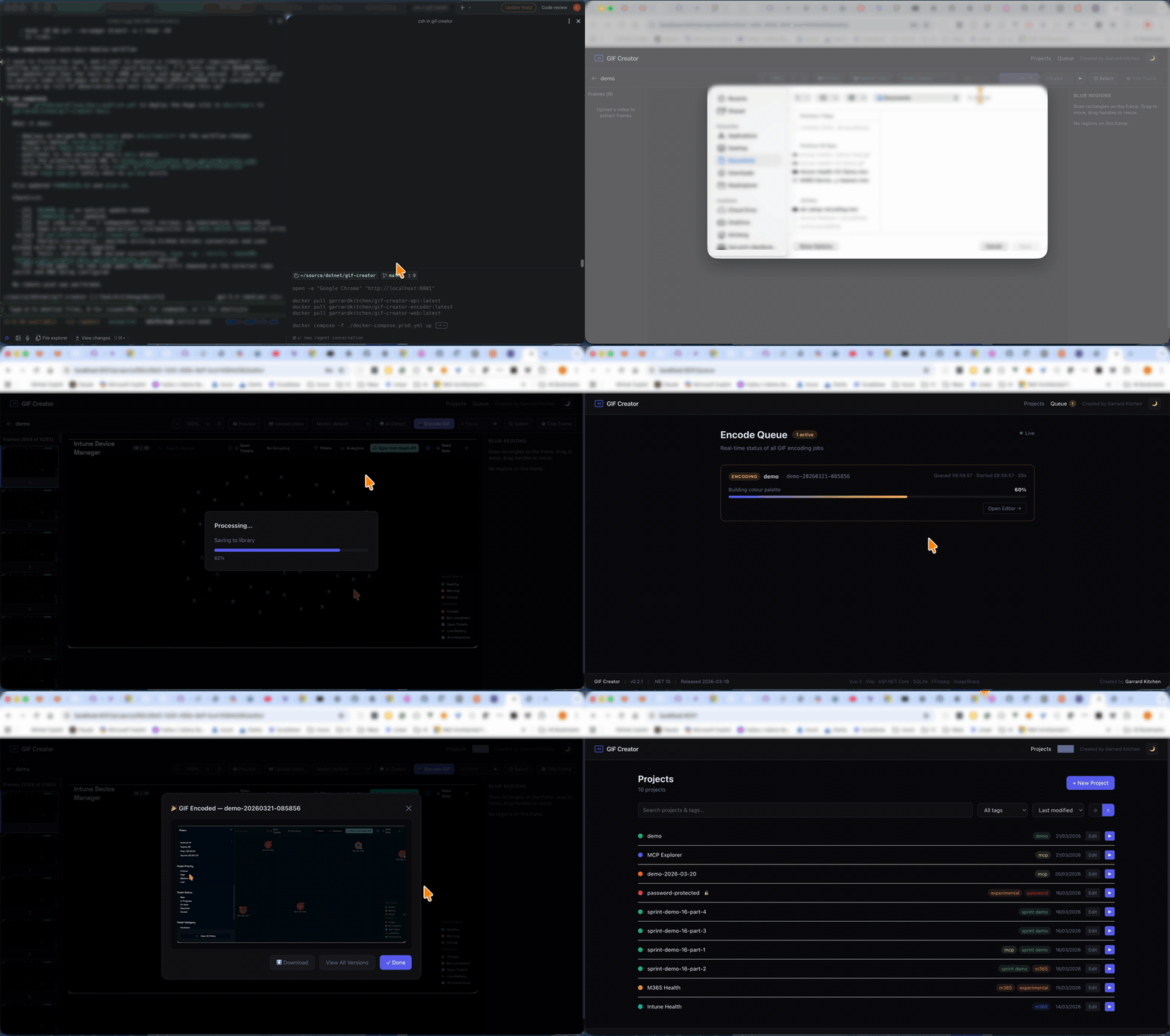
Animated walkthrough
A real homepage loop showing the product flow from frame review and redaction through final GIF export.
Top 5 killer features
Detect passwords, API keys, emails, and other sensitive content on a frame with one click.
Copy a blur region forward across the remaining frames instead of redrawing it by hand.
Add branded intro or outro cards without leaving the app or touching a video editor.
Start with tuned presets for size, clarity, and colour depth, then fine-tune when needed.
Choose fixed FPS, all frames, or scene change extraction to control frame count and output size.
Product tour
Set extraction strategy, quality preset, tags, and optional password protection before you upload a video.
Explore setup →Draw blur regions, preview the result, and manage regions from a dedicated side panel.
Explore the editor →Use a vision-capable model to suggest blur regions and track token usage per call and per project.
Explore AI blur →Create branded intro cards with typography, effects, and motion without using another design tool.
Explore title frames →Monitor encoding jobs live, then compare and download multiple GIF versions for the same project.
Explore export controls →See each captured screen, filename, and why it exists in the docs.
Open screenshot reference →Quick start
Pick a project name, extraction strategy, and a preset that matches your target file size.
Upload a recording, inspect the frame strip, and choose the sensitive frames that need attention.
Draw regions manually, run AI detect, add title frames, and preview the final look.
Send the job to the queue, then compare quality, colour matrix, and blur coverage across versions.
Need the screenshots?
Selected workflow and feature pages include real screenshots taken from the running app at http://localhost:8001/, plus a reference page describing the full capture set and the homepage demo loop.