Docs
Frame editor
Use the frame strip, interactive blur canvas, preview mode, and bulk operations to refine a project.
Overview
The frame editor is the workhorse of GIF Creator. It combines frame navigation, blur editing, preview mode, title frame editing, and encode actions in one screen.
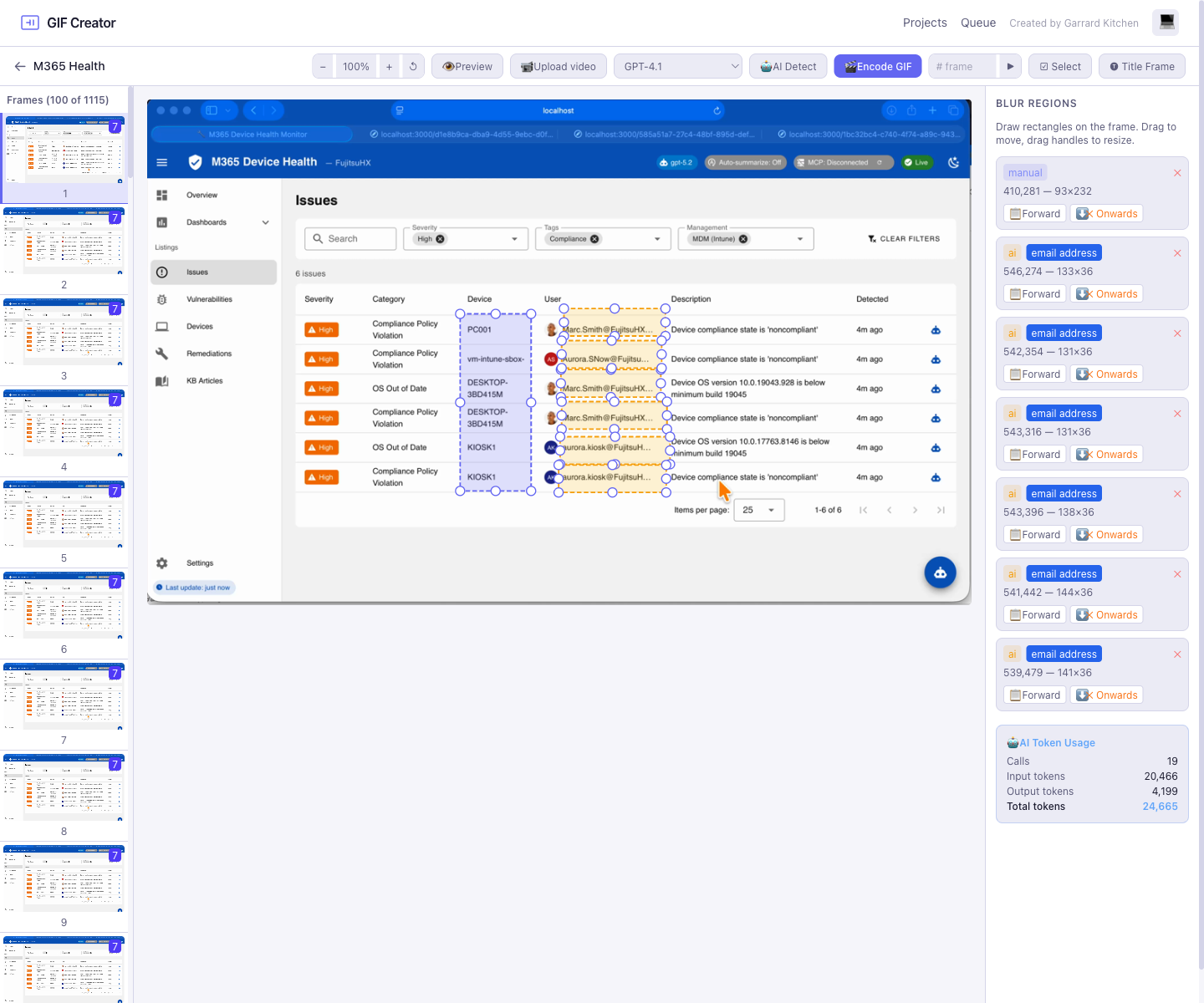
Editor regions
The editor is divided into three main areas:
- Frame strip: a scrollable list of extracted frames and title frames
- Canvas: the central image or preview area where you draw and resize blur regions
- Region panel: the control surface for region actions, labels, and project-level AI token totals
Manual regions appear as blue overlays in the editor. You can drag them to reposition them, then resize them with the visible handles around the region boundary.
Frame strip actions
The frame strip is more than navigation. It also supports timeline editing actions directly on the thumbnails:
- Hover a title frame to move it up or down in the sequence
- Delete an individual frame
- Delete from the current frame onwards
- Switch to multi-select mode to remove several frames at once
These controls let you clean up a long capture without leaving the editor.
Toolbar actions
The toolbar exposes the high-frequency actions you need while editing:
- Zoom out, zoom in, and reset to
100% - Upload a new video
- Toggle preview mode
- Pick the AI model
- Run AI blur detection
- Encode the GIF
- Jump directly to a frame
- Insert a title frame
- Switch into multi-select delete mode
The zoom controls scale the current slide in the center canvas so you can inspect small blur regions more closely, then reset back to the default view with a single click.
Preview mode
Preview mode switches from the editable overlay view to the rendered frame preview so you can confirm the final blur output before encoding.
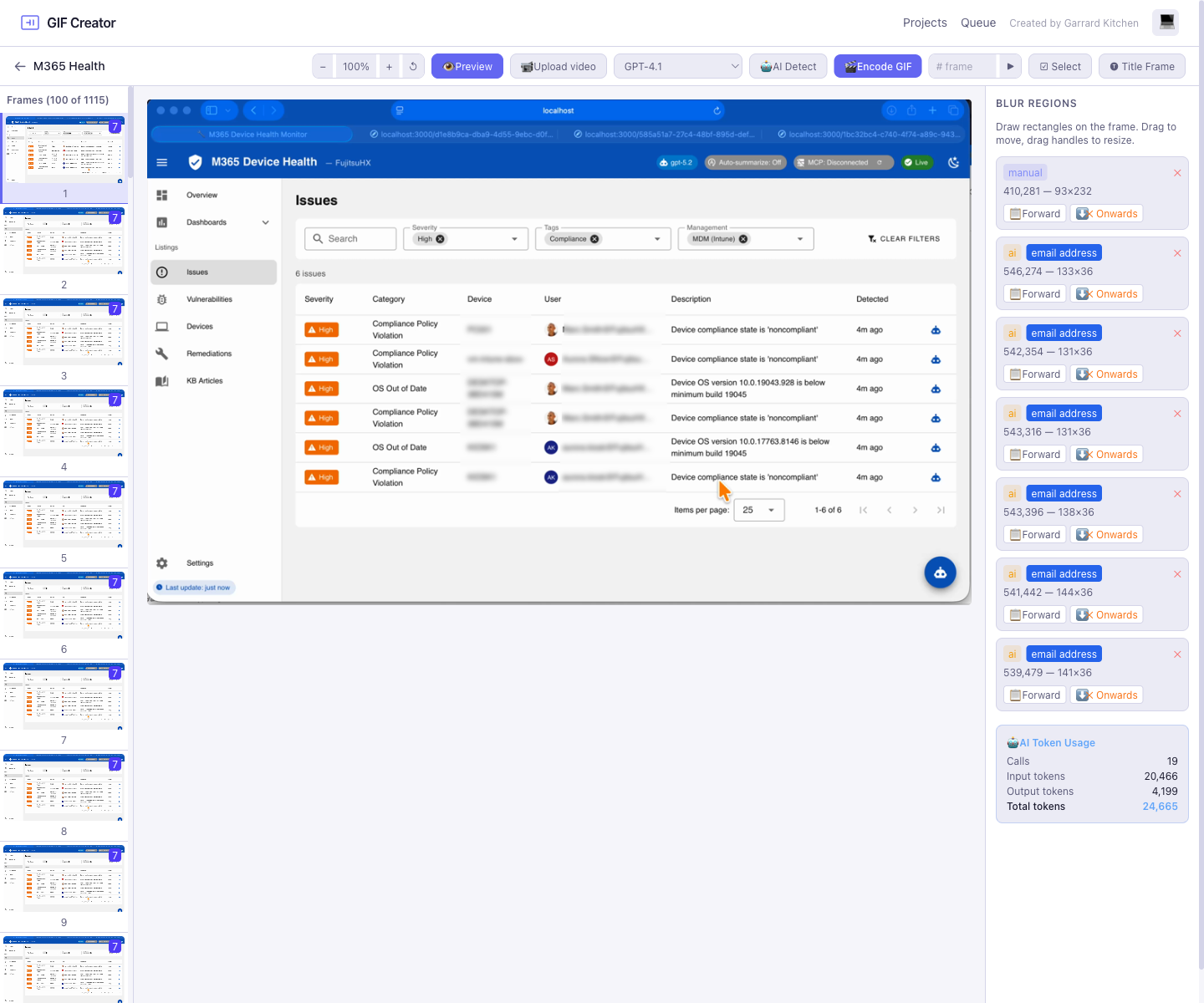
Bulk operations
When you need to change many frames at once, the editor supports:
- Copying a blur region forward
- Removing a propagated region from the current frame onward
- Selecting and deleting multiple frames
- Deleting a frame and everything after it
These actions matter most for long recordings, where frame-by-frame editing would otherwise be slow.
For example, if you draw a blue manual blur region over a password field, you can use Forward in the region panel to copy that same region to all following frames instead of redrawing it frame by frame.
Progressive loading
The editor initially loads the first 100 frames in the strip, then progressively loads more as you scroll.
Under the hood, the strip uses an IntersectionObserver on a sentinel element near the bottom of the list. When that sentinel comes into view and more frames are available, the next page of frames is fetched and appended to the strip.
That approach keeps the editor responsive on large projects while still letting you work through long recordings.