Docs
Project management and setup
Create projects, tag them, protect them with passwords, and choose extraction and quality defaults.
Overview
Project setup defines the default editing and export behavior before the first frame is generated.
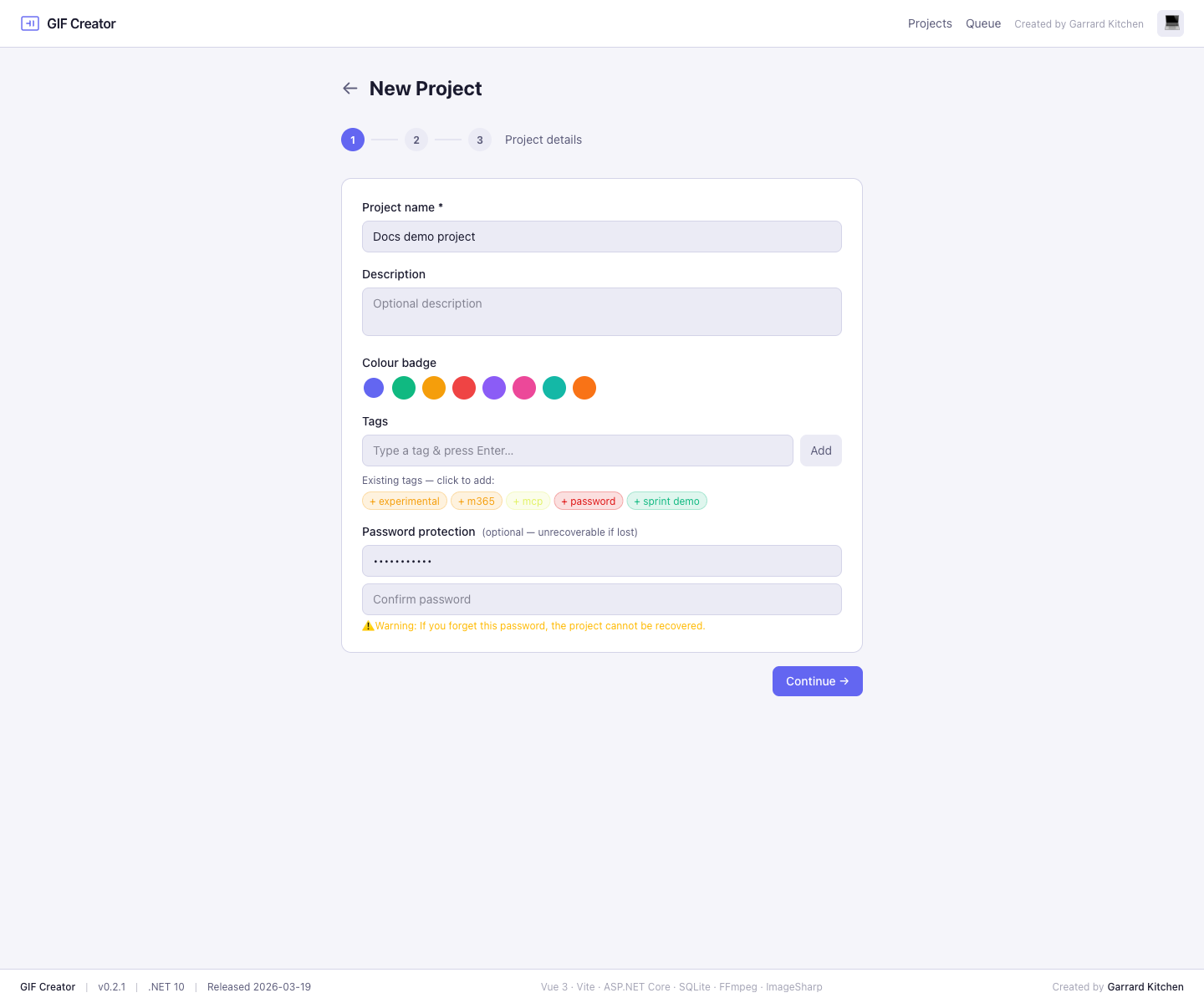
What you can configure
- Project name and description
- Colour badge for dashboard scanning
- Reusable project tags
- Optional password protection
- Frame extraction strategy
- Default quality preset and output dimensions
Project library tools
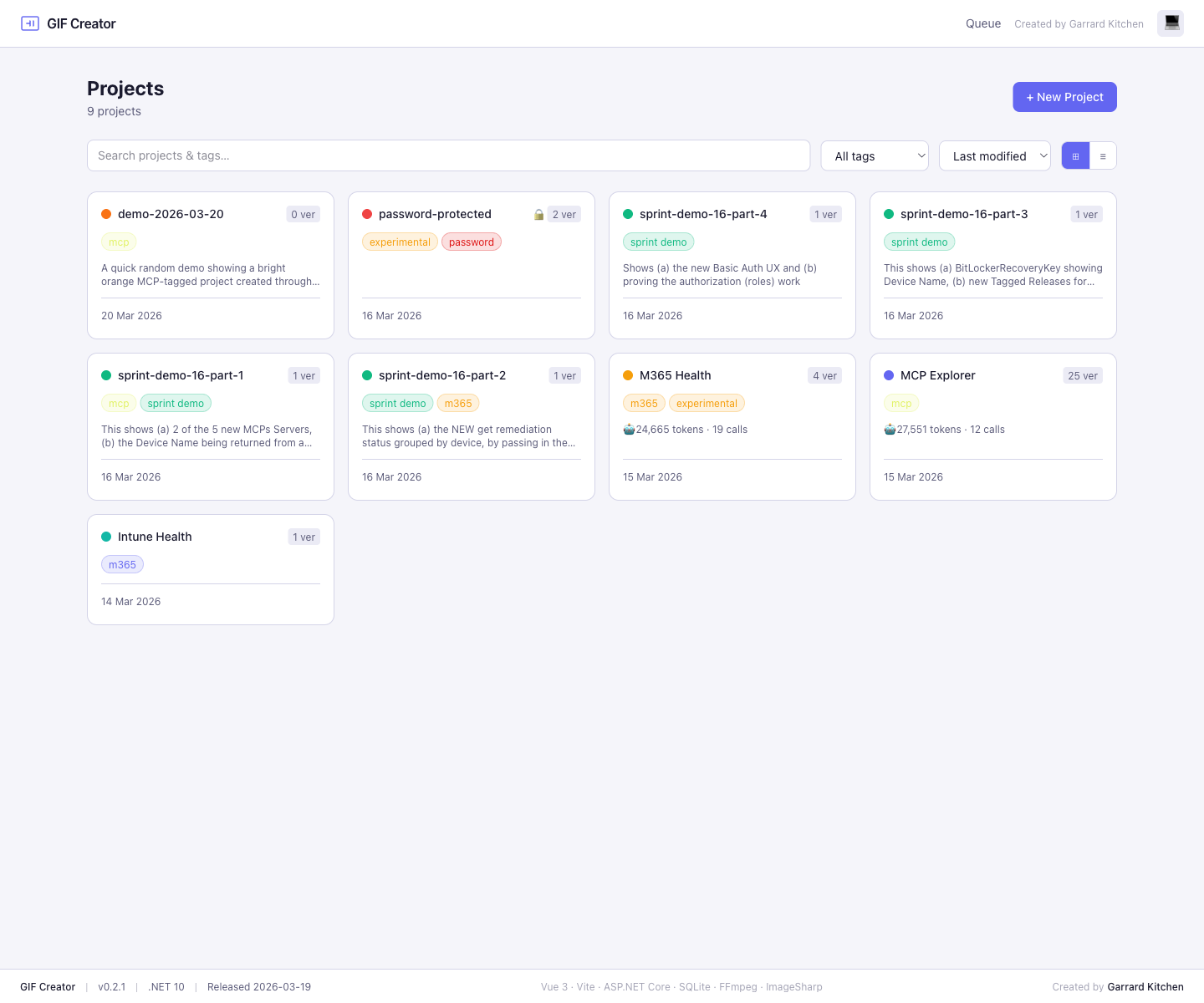
The dashboard gives you two project listing views:
- Grid view for card-based scanning
- List view for denser browsing with quick metadata
It also includes a search box for projects and tags, a tag filter, and sorting controls.
Tags and colours
GIF Creator treats tags as a reusable organisation layer for projects.
- add tags during project creation
- reuse existing tags and inherit their saved colours
- remove tags before saving a new project
- rename tags in the edit screen
- choose or change a tag colour in the edit screen
That makes it easier to group related demos, client work, experiments, or security-sensitive recordings.
Extraction strategies
GIF Creator includes three extraction strategies:
| Strategy | Best for | What it does |
|---|---|---|
FixedFps | Most demos and walkthroughs | Samples the recording at a constant frame rate |
SceneChange | Longer clips with distinct transitions | Keeps key changes while reducing redundant frames |
AllFrames | Maximum fidelity | Keeps every frame |
Why this matters
Extraction strategy has a direct impact on processing time, editor responsiveness, and final GIF size. Scene-aware extraction is especially useful for tutorials and screen recordings where large sections of the image remain static.
Password protection
Projects can be created with a password, which the app surfaces clearly on the dashboard and details view.