Docs
Redact sensitive data fast
Use manual blur, AI blur detection, preview mode, and region propagation together.
Overview
This is the core GIF Creator workflow: upload a recording, detect or draw blur regions, preview the result, and export a safe GIF.
Recommended sequence
- Open the project editor.
- Upload a video and wait for frames to appear in the frame strip.
- Select a frame that contains sensitive data.
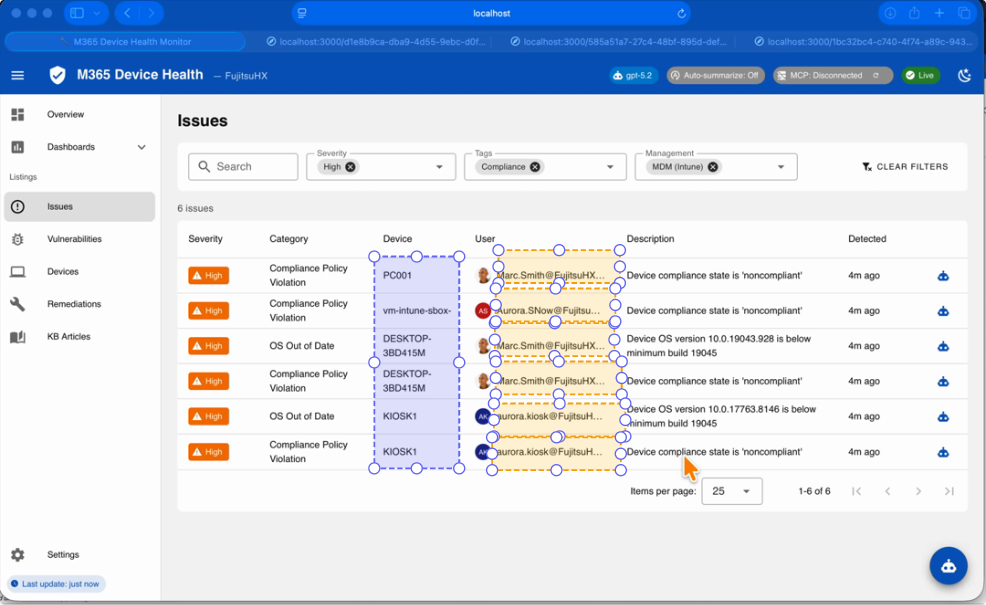
- Draw a manual blue blur region, or run AI Detect.
- Resize the blur region with the handles until it fully covers the sensitive content.
- Use Forward to propagate that region through later frames.
- Toggle Preview to validate the blur result.
- Encode the GIF.
Why propagation matters
If the same password field, badge, or API key appears across many frames, region propagation saves time immediately. You draw one blue region, size it correctly, then copy it to the remaining timeline with a single action.
AI-assisted path
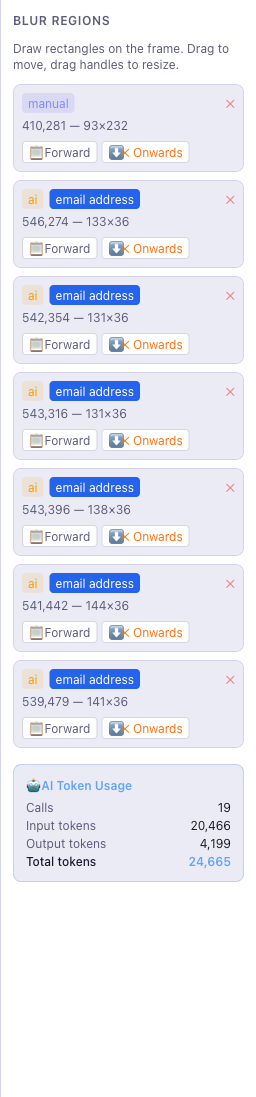
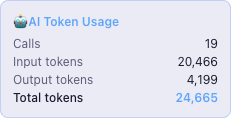
When the frame contains multiple sensitive elements, use the AI detect button to generate blur suggestions, then review the AI labels and token totals before exporting. In this walkthrough, the saved AI suggestions were generated with GPT-4.1, and labels such as email address identify the PII category the model assigned to each suggested region.
The AI prompt is designed to look for common sensitive categories, including:
- full names, usernames, and display names
- email addresses
- phone numbers
- IP addresses, MAC addresses, and hostnames tied to real machines
- passwords, tokens, API keys, secrets, and credentials
- financial data linked to a person
- passport numbers, national IDs, and other government-issued identifiers
- internal system names, device names, and organisation-specific identifiers
Before export
Use preview mode before encoding. It lets you verify that the blur coverage matches the final output rather than the editable overlay view.